The Command Line: Newman and the Postman CLI
Running collections from a terminal is what turns your Postman tests into automation. Today there are two command-line runners, and a professional knows both:
- Newman — the classic, open-source runner, installed via npm. It has years of tutorials behind it and a rich ecosystem of community reporters — most notably htmlextra, whose HTML reports remain the best stakeholder-friendly output in the ecosystem. Note that Newman supports the collection v2/v2.1 JSON format only; it cannot run the newer v3 YAML collections introduced with Postman v12.
- Postman CLI — the official, Postman-built successor, introduced with Postman v10 and actively developed since. It authenticates with a Postman API key, can run collections straight from your workspace without exporting anything, sends results back to Postman's cloud as a shareable run report, and adds API linting/governance on enterprise plans.
For a brand-new pipeline the Postman CLI is the natural starting point; Newman remains fully supported and is everywhere in existing CI systems. Both exit with code 0 on success and non-zero when any test fails — the exact signal CI systems use to pass or fail a build.
Option A — Newman with an HTML Report
Step 1 — Check whether Node.js and npm are installed. Open a terminal and run node -v and npm -v.
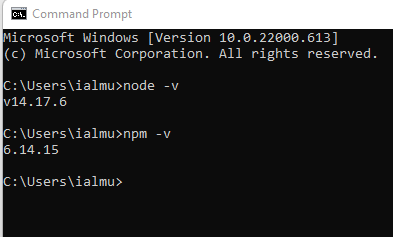
Step 2 — If not, install the current LTS version of Node.js from https://nodejs.org/ — npm ships with it.
Step 3 — Install Newman globally:
npm install -g newman
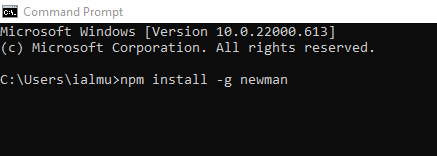
Step 4 — Install the htmlextra reporter:
npm install -g newman-reporter-htmlextra
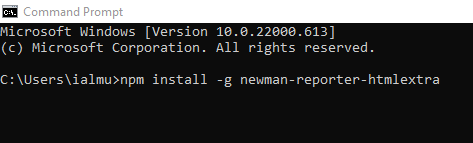
Step 5 — Run the collection with an environment, producing both console output and an HTML report:
newman run "MyCollection.postman_collection.json" -e "Staging.postman_environment.json" -r cli,htmlextra

Step 6 — A folder named newman is created automatically, containing the report — open it in a browser for a full dashboard of requests, tests, and failures.
Step 7 — The switches you will actually use: -d data.csv for data-driven runs, -n 10 for iteration counts, --folder "Smoke" to run a single folder, --env-var "token=$TOKEN" to inject a secret from the shell without any file. Full reference: https://www.npmjs.com/package/newman.
Option B — the Postman CLI
Step 1 — Install the Postman CLI with the one-line installer for your OS from https://learning.postman.com/docs/postman-cli/postman-cli-installation/.
Step 2 — Generate a Postman API key from your profile settings and log in:
postman login --with-api-key YOUR_API_KEY
Step 3 — Run a collection — from a local export, exactly like Newman:
postman collection run "MyCollection.postman_collection.json" -e "Staging.postman_environment.json"
…or directly from your workspace by ID, no export step at all:
postman collection run 12345678-abcd-efgh-ijkl-9876543210ab
Step 4 — At the end of the run, the CLI prints a link to a full run report in your workspace — pass/fail per test, response times, console output — shareable with anyone on the team.
Choosing between them: exported-file workflows and rich local HTML reports favour Newman; workspace-live collections, cloud reporting, and governance favour the Postman CLI. Many teams run both during a transition, since the command shapes are nearly identical.